

Documentation Index
Fetch the complete documentation index at: https://setup.cevro.ai/llms.txt
Use this file to discover all available pages before exploring further.
How It Works
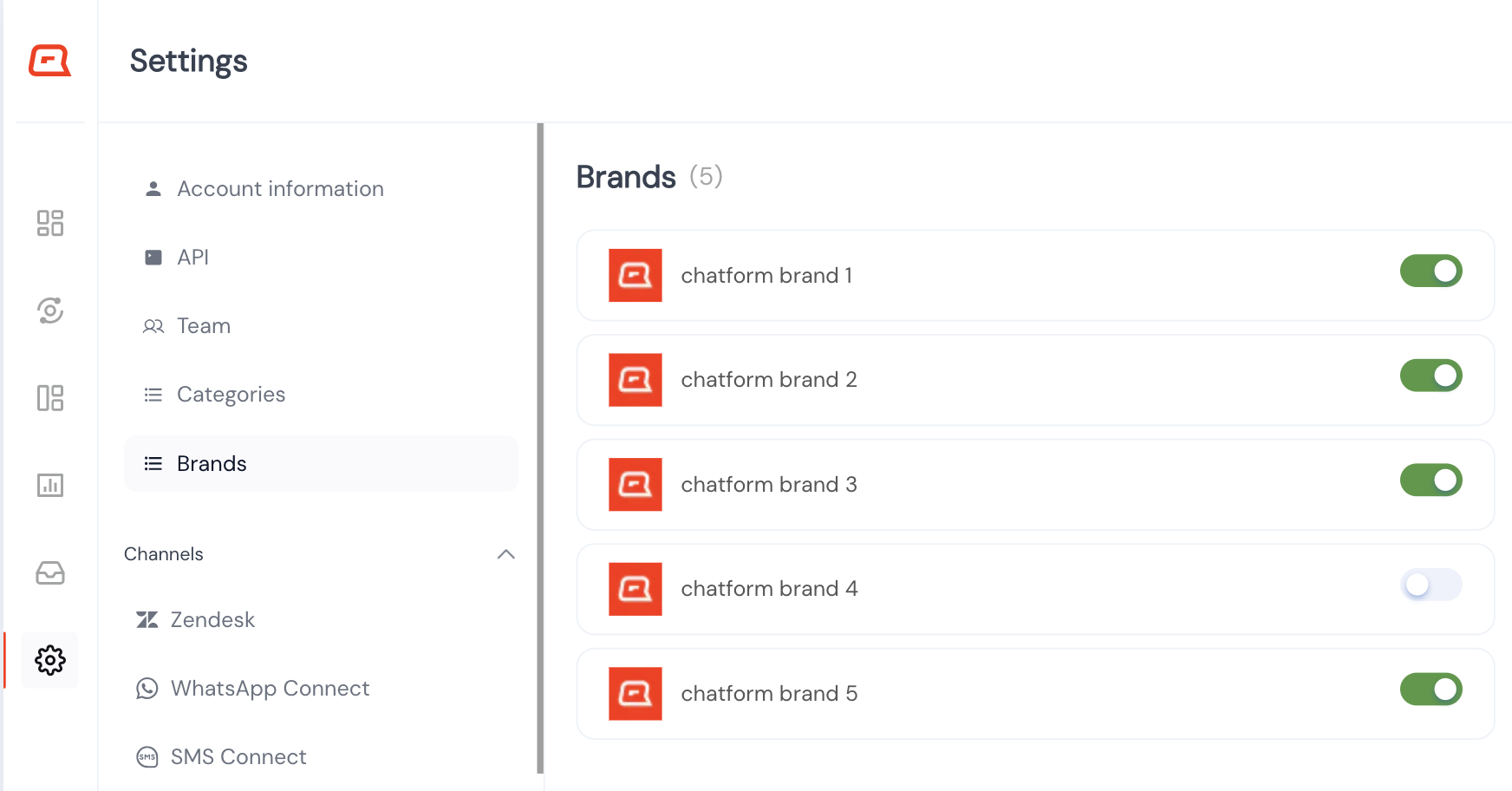
By default, an AIP applies to all brands in your workspace. When you create a brand variant:- That brand gets its own version of the AIP
- The variant inherits the base name, description, and category
- You customize the instructions and behavior settings for that brand
- Brand A: 24-48 hours
- Brand B: 3-5 business days
- Brand C: Same-day for VIPs
Creating a Brand Variant
- Open the AIP you want to customize
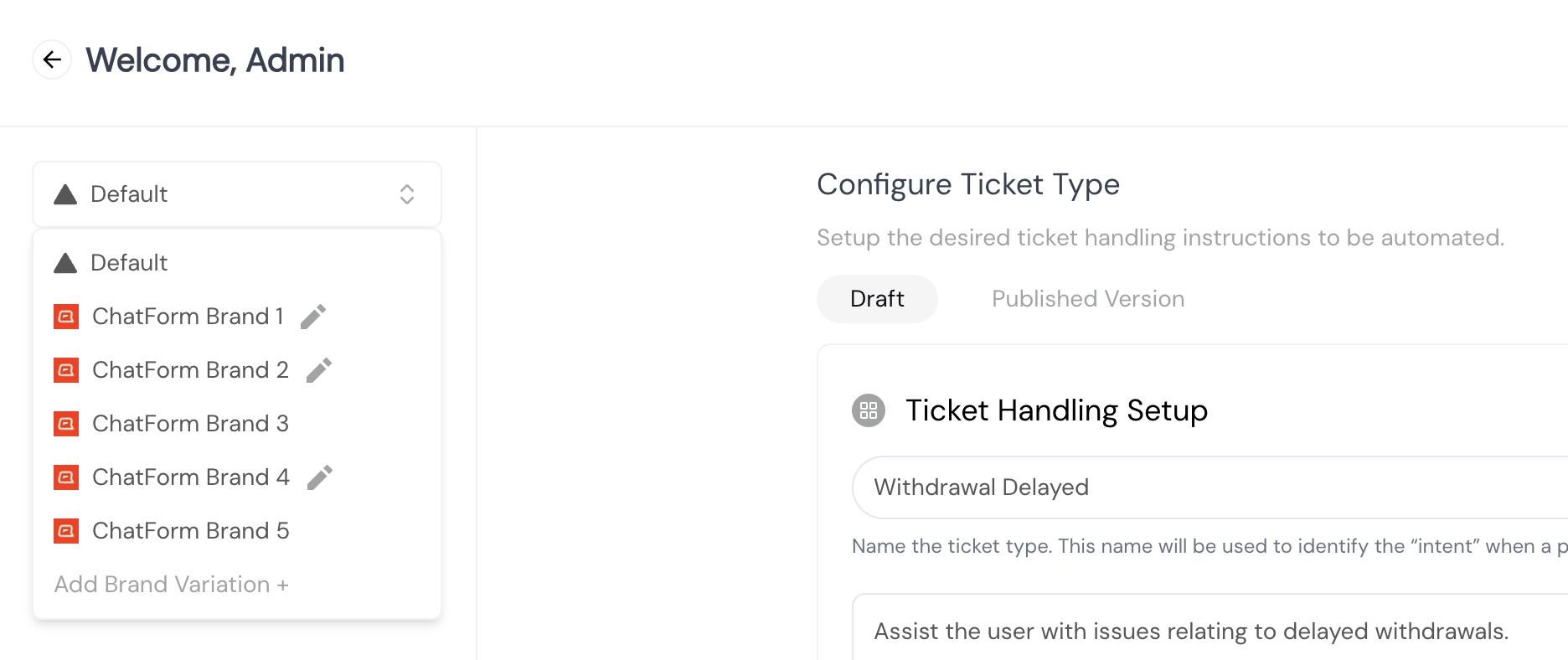
- Click the brands dropdown in the top left
- Select “Add Brand Variation”
- Choose the brand
What You Can Customize
Each brand variant can have its own:- Instructions — Different procedures or messaging
- Player Context — Different backoffice data sources per brand
- Behavior settings — Different escalation or authentication rules
- Name
- Description
- Category
- Example utterances
Active/Inactive States
AIPs have anactive flag that’s separate from draft/published status. Combined with brand variants, this enables powerful scoping patterns:
Brand-Specific AIP
Set the base AIP to inactive, then activate only for specific brands:| Base AIP | Brand A | Brand B | Brand C |
|---|---|---|---|
| Inactive | Active | Inactive | Inactive |
Exclude Specific Brands
Set the base AIP to active, then deactivate for specific brands:| Base AIP | Brand A | Brand B | Brand C |
|---|---|---|---|
| Active | Inactive | (inherits) | (inherits) |
Gradual Rollouts
Start with the base inactive, then activate brands one by one as you validate behavior.Managing Variants
Visual Indicators
A pencil icon appears on any brand with unpublished changes, helping you track what’s been modified but not yet live.Publishing
Each brand variant has its own draft/published state:- Changes to the base AIP don’t automatically update variants
- Publish each variant separately when ready
Deleting a Variant
If you delete a brand variant, that brand reverts to using the base AIP.Best Practices
Start with a solid base — Get your base AIP working well before creating variants Only vary what’s necessary — If 90% of the instructions are the same, keep them in the base and only customize the 10% that differs Document brand differences — Add a note in the instructions explaining what’s brand-specific (e.g., “Processing time: 24-48 hours for this brand”) Test each variant — Use the Playground to test conversations for each brandRelated Documentation
- AI Procedures (AIPs) — Base AIP configuration
- Testing AIPs — Testing brand-specific behavior