

Documentation Index
Fetch the complete documentation index at: https://setup.cevro.ai/llms.txt
Use this file to discover all available pages before exploring further.
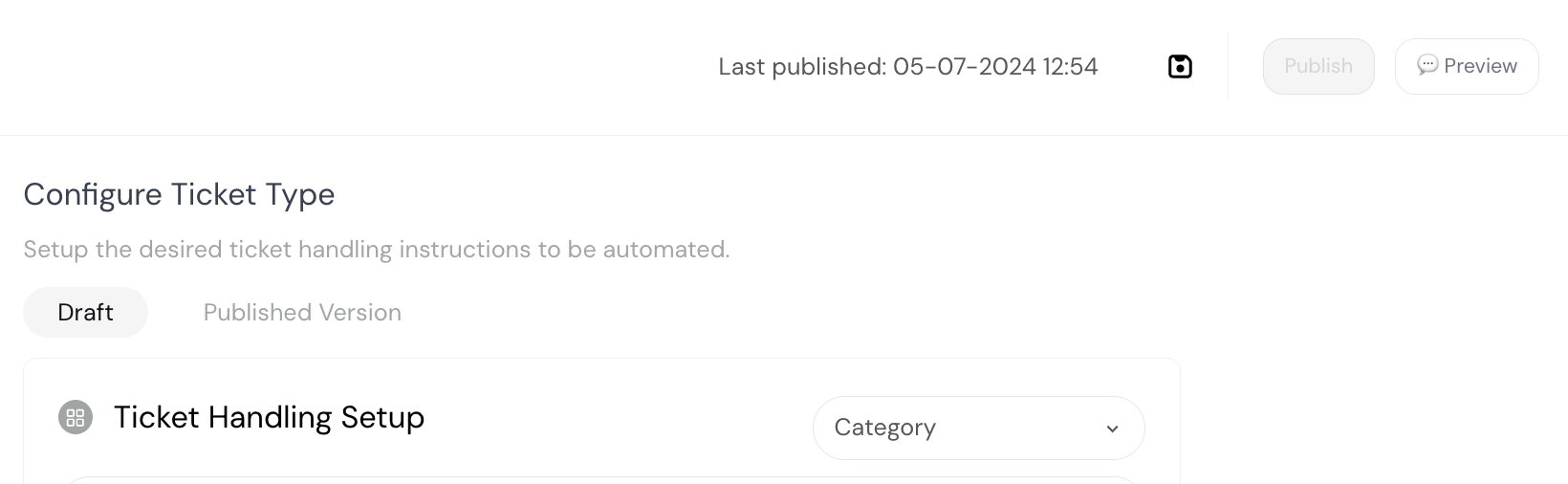
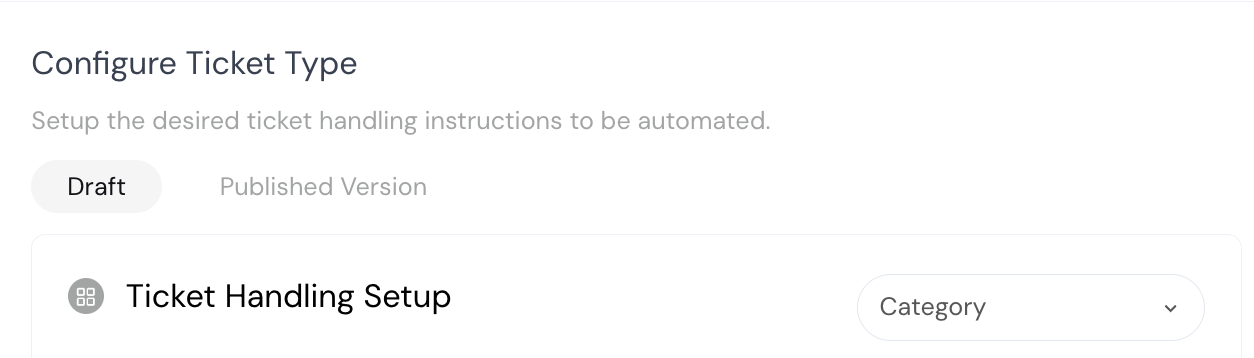
Draft vs Published
| State | Who sees it | Editable |
|---|---|---|
| Draft | Only you (in Preview/Playground) | Yes |
| Published | Live players | No (read-only) |
How It Works
- Edit in Draft mode — Make changes to instructions, settings, etc.
- Save — Click the Save button to save your draft (doesn’t affect live)
- Test — Use Preview or Playground to verify behavior
- Publish — When satisfied, click Publish to push changes live

The Preview and Playground always use draft versions. If you’re seeing unexpected behavior, check if there’s an unpublished draft that differs from the published version.
Where to Test
Embedded Playground (In AIP Editor)
When editing an AIP, click the Preview button in the toolbar to open an interactive testing panel alongside your editor. Brand and AIP are pre-selected, and it uses draft versions automatically. Best for: Iterating on a specific AIP — edit, test, adjust, repeat.Standalone Playground
Navigate to Workspaces → Playground for a full-page testing environment with all configuration options. Best for: End-to-end testing before going live — classification, cross-brand, full player experience.Testing Tips
Use real player messages — Test with actual phrases players use, not idealized examples Test edge cases — Try ambiguous requests, frustrated tones, incomplete information Test the full flow — Don’t just test that the AIP triggers — test the complete conversation path Test brand variants — If you have brand-specific variations, test each one using the brand selector Check escalation behavior — Verify that escalation criteria work as expected Test classification — In the standalone playground, leave the AIP selector empty and send messages to verify the right AIP gets triggeredCommon Issues
| Issue | Cause | Fix |
|---|---|---|
| AIP not triggering | Description doesn’t match test message | Refine the description or example utterances, or select the AIP directly |
| Old behavior showing | Testing with published version | Ensure you’re testing drafts (Preview/Playground use drafts by default) |
| Player Context empty | Not authenticated or backoffice error | Use a player profile with valid auth fields, or enable mock backoffice |
| Wrong AIP selected | Multiple AIPs match the input | Make descriptions more distinct, or select the AIP directly to skip classification |
| Settings not changing | Settings are locked during active conversations | Start a new chat to apply different settings |
Related Documentation
- Playground — Configuration, player profiles, mock backoffice
- AI Procedures (AIPs) — Creating and configuring AIPs
- Brand Variants — Testing brand-specific behavior